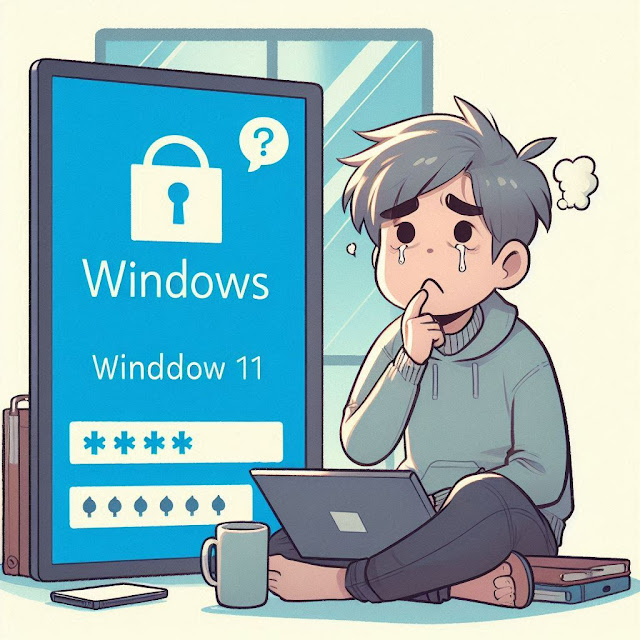
Forgetting your Windows 11 password can be a frustrating experience, but don’t worry, there are several ways to regain access to your system. In this guide, we’ll walk you through the various methods you can use to reset your forgotten password and get back into your computer.

Method 1: Reset Password Using a Microsoft Account
If you’re using a Microsoft account to log into Windows 11, resetting your password is a relatively straightforward process.
Steps:
-
Go to the Microsoft Password Reset Page
Open a web browser on a different device (or on the locked device if you can access it) and go to the Microsoft Password Reset page. -
Choose the Reset Option
Select the “I forgot my password” option and click “Next.” -
Enter Your Microsoft Account Email
Provide the email address associated with your Microsoft account and follow the on-screen prompts to verify your identity. You may need to enter a code sent to your alternate email address or phone number. -
Create a New Password
Once verified, you’ll be given the option to create a new password. Make sure to choose a strong and memorable one. -
Log Into Windows 11
Once your password is reset, go back to your Windows 11 login screen, enter the new password, and you should be able to access your system again.
Method 2: Reset Password Using a Local Account with Security Questions
If you’re using a local account on your Windows 11 device, and you’ve set up security questions during the account setup, you can reset your password using those questions.
Steps:
-
Go to the Lock Screen
On the Windows 11 login screen, click on “I forgot my password.” -
Answer the Security Questions
Windows will prompt you with the security questions you set up when you created the local account. Answer them correctly. -
Create a New Password
Once you’ve successfully answered the questions, you’ll be able to create a new password for your local account. -
Log Into Windows 11
Enter the new password on the login screen to access your system.
Method 3: Reset Password Using a Password Reset Disk
If you created a password reset disk (a USB drive or other removable media) before you forgot your password, you can use this to reset it.
Steps:
-
Insert the Password Reset Disk
Insert the USB or removable media that contains the password reset disk into your PC. -
Click on Reset Password
On the login screen, click on the “Reset password” link below the password box. -
Follow the On-Screen Instructions
Select the password reset disk and follow the on-screen instructions to create a new password. -
Log Into Windows 11
After resetting your password, you can log into your Windows 11 device with the new credentials.
Method 4: Reset Windows 11 Using Safe Mode (if you have another Admin Account)
If you have another administrator account on your Windows 11 PC, you can use that account to reset the password for the locked user account.
Steps:
-
Log Into the Admin Account
If you have another administrator account on the PC, log into it first. -
Open the Control Panel
PressWin + R, typecontrol, and press Enter to open the Control Panel. -
Navigate to User Accounts
Go to “User Accounts” > “Manage another account.” -
Select the Account
Select the account for which you forgot the password. -
Change the Password
Click “Change the password,” and enter a new password. -
Log Into Windows 11
Log out of the admin account and log into the locked account using the new password.
Method 5: Perform a System Reset (Last Resort)
If none of the above methods work and you still cannot access your Windows 11 device, you can perform a system reset. This option will reinstall Windows 11 but gives you the choice of keeping your files or removing everything.
Steps:
-
Access Windows Recovery Environment
On the login screen, hold down theShiftkey and click the “Restart” button. This will take you into the Windows Recovery Environment (WinRE). -
Navigate to Reset Options
Once in the recovery environment, select “Troubleshoot” > “Reset this PC.” -
Choose to Keep or Remove Files
You will be asked if you want to keep your files or remove everything. Choose the option that best suits your needs. -
Reset Windows 11
Follow the prompts to reset Windows 11. Your PC will restart and begin the reset process. -
Set Up Windows 11 Again
Once the reset is complete, you will need to set up Windows 11 again. You can create a new user account and password during the setup process.
Conclusion
Forgetting your Windows 11 password doesn’t mean you’re locked out forever. With the methods outlined above, you can reset your password and regain access to your computer. Whether you’re using a Microsoft account, a local account with security questions, or an admin account, there’s a way to recover your login credentials. In the worst-case scenario, a system reset can get you back on track, although it may involve reinstalling Windows 11. Always consider setting up password recovery options ahead of time to avoid such issues in the future.