
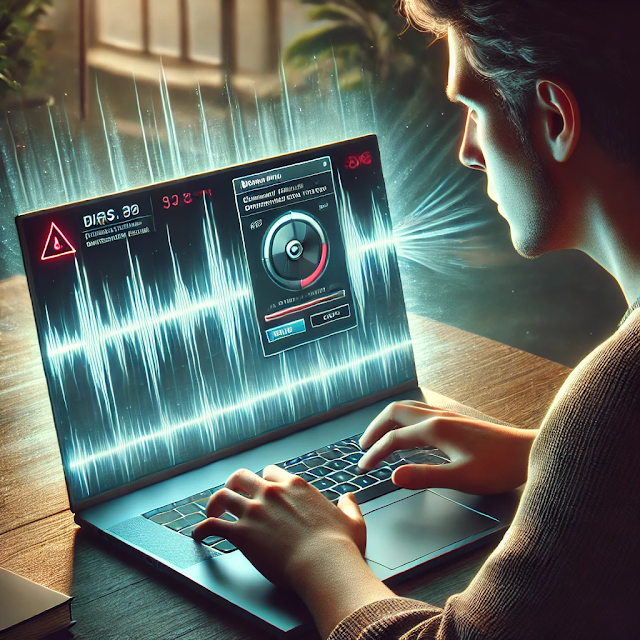

If you are experiencing a popping or cracking sound from your laptop’s internal speakers during boot but it disappears once you reach the lock screen, you’re not alone. This issue occurs even in the BIOS menu before Windows loads, and certain settings, such as Fast Startup, can influence when the popping sound happens. In this guide, we will explore the possible causes and solutions to fix this problem.
Why Does the Popping Sound Happen?
This issue is often related to how power is delivered to the audio hardware. Some common causes include:
- Power state transitions: When the system powers on, the audio driver or hardware may experience a sudden power surge, causing the pop sound.
- Fast Startup behavior: Fast Startup keeps certain drivers preloaded, which may result in inconsistent power delivery to the speakers.
- BIOS and firmware limitations: Some laptops have BIOS settings that don’t fully regulate audio initialization properly.
- Driver conflicts: Incompatible or outdated audio drivers can cause sound anomalies.
- Intel Innovation Platform Framework issues: This driver helps manage system power but may interfere with audio initialization.
Solutions to Fix the Popping Sound Issue
1. Disable Fast Startup
Fast Startup can cause issues with power management for audio components. Try disabling it:
- Open Control Panel and go to Power Options.
- Click Choose what the power buttons do.
- Click Change settings that are currently unavailable.
- Uncheck Turn on fast startup (recommended).
- Click Save changes and restart your laptop.
If the issue is resolved, Fast Startup was likely causing the problem. If not, continue with the next steps.
2. Update or Roll Back Audio Drivers
Corrupt or outdated audio drivers can contribute to speaker popping issues.
To update audio drivers:
- Right-click Start and select Device Manager.
- Expand Sound, video and game controllers.
- Right-click your audio device (e.g., Realtek High Definition Audio) and select Update driver.
- Choose Search automatically for drivers and follow the prompts.
To roll back audio drivers:
- In Device Manager, right-click your audio device and select Properties.
- Go to the Driver tab and click Roll Back Driver (if available).
- Restart your PC and check if the issue persists.
3. Check Intel Innovation Platform Framework Driver
Some users report that issues with the Intel Innovation Platform Framework Processor Participant Driver can cause audio problems.
- Open Device Manager.
- Expand System devices.
- Locate Intel Innovation Platform Framework Processor Participant.
- Right-click and select Disable device.
- Restart your laptop and test the sound.
If the issue is resolved, this driver may be causing power fluctuations to your speakers.
4. Change Audio Power Management Settings
Some laptops include power-saving features that turn off the audio hardware when not in use, which can result in popping sounds when reactivating.
- Open Control Panel and navigate to Sound.
- Select your audio device and click Properties.
- Go to the Enhancements tab and disable all sound effects.
- In the Advanced tab, uncheck Allow applications to take exclusive control of this device.
- Click OK and restart your laptop.
5. Update Your BIOS
An outdated BIOS can cause various hardware issues, including audio-related ones.
- Visit your laptop manufacturer’s support website.
- Search for the latest BIOS update for your laptop model.
- Follow the manufacturer’s instructions to update the BIOS safely.
6. Try External Audio Devices
To determine if the problem is hardware-related, try using external speakers or headphones. If the popping sound occurs only on internal speakers, it may indicate a hardware issue that requires professional repair.
Final Thoughts
The popping sound from laptop speakers during boot is typically caused by power transitions, driver conflicts, or BIOS settings. Disabling Fast Startup, updating or rolling back audio drivers, tweaking audio power settings, and updating BIOS are the most effective ways to resolve the issue. If none of these solutions work, consider reaching out to your laptop manufacturer’s support for further assistance.
SEO Tags for Your Blog Post
- Laptop speaker popping sound
- Windows 11 sound issues
- Fix speaker crackling on boot
- Audio popping noise laptop
- How to disable Fast Startup Windows 11
- Windows 10/11 BIOS audio issue
- Realtek audio popping fix
- Intel Innovation Platform audio fix
- Speaker popping when turning on laptop
- Fix laptop sound distortion
- Windows 11 audio driver fix