Estimated read time: 12–15 minutes.
Why time drift in AD is a big deal
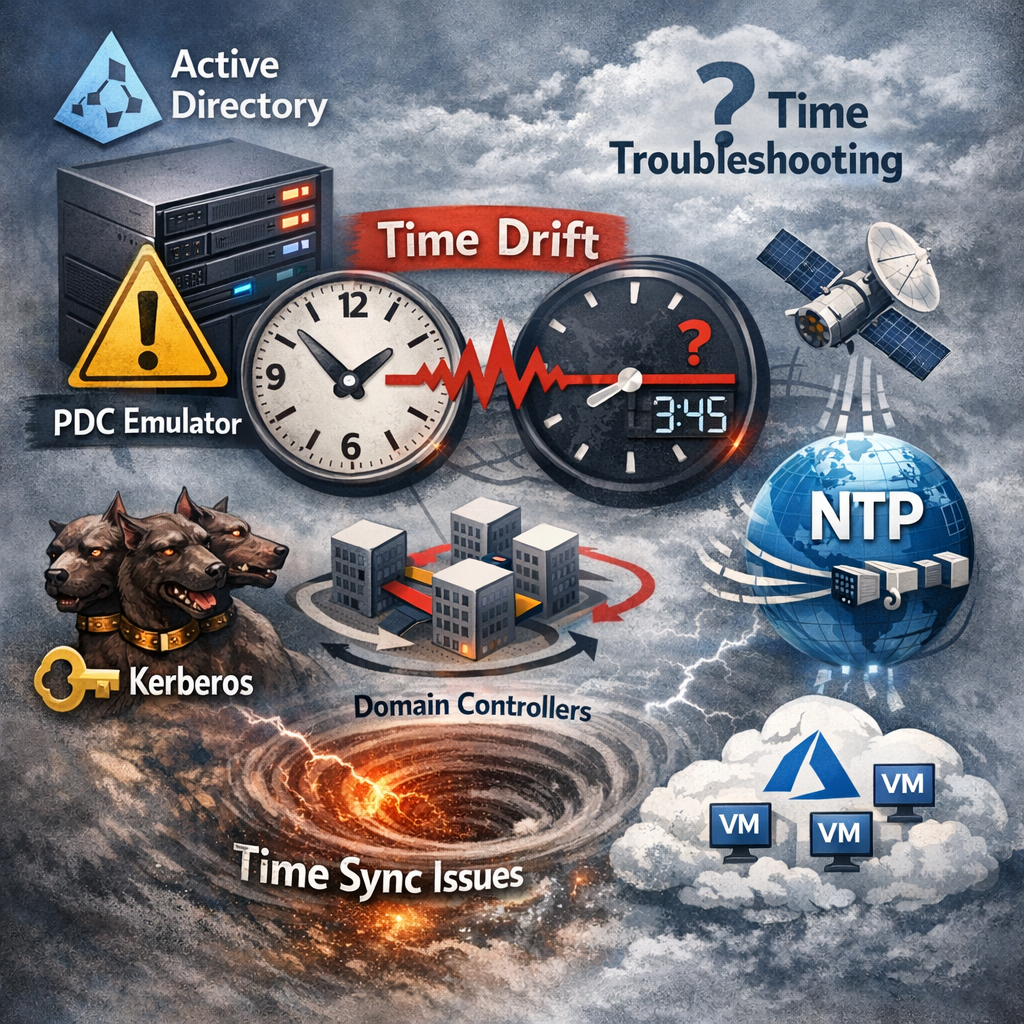
Active Directory authentication depends on correct time. Kerberos has a strict tolerance window; when clocks drift, you get failed logons, random access issues, broken SSO, and unreliable auditing. The Windows Time service (W32Time) is designed to keep domain computers synchronized using a domain time hierarchy, and it uses UDP port 123 for NTP traffic.
In modern environments—especially when domain controllers are virtual machines—time drift is often caused by multiple competing time sources (hypervisor time integration, public NTP on the wrong DC, or inconsistent hierarchy across domains). The fix is not “resync a laptop”; it’s to correct the authoritative chain.
The correct AD time hierarchy (what “healthy” looks like)
In a well-designed AD forest:
- Forest-root PDC Emulator syncs with a reliable external time source (NTP).
- All other domain controllers sync via domain hierarchy (NT5DS).
- Child-domain PDC Emulators sync upward (ultimately to the forest-root PDC).
- Member servers and workstations sync from a DC (typically the DC that handled authentication).
This behavior is documented in Microsoft’s Windows Time service guidance: domain members use NT5DS (domain hierarchy), while the forest-root PDC is the special case that uses an external source.
The most common root causes (what breaks the hierarchy)
1) Hypervisor/VM time integration overrides AD
Virtual machines often have a platform time provider enabled. On Windows, you’ll see “VM IC Time Synchronization Provider” when the VM is syncing from the host. If you want the traditional AD time hierarchy, Microsoft guidance is to disable the VM time provider on domain controllers so AD time wins.
2) More than one DC syncs to external NTP
If multiple DCs independently sync to public NTP (or different sources), the domain becomes a set of time islands. Clients will “legitimately” pick different DCs and time will jump.
3) A child-domain PDC syncs externally instead of upward
Only the forest-root PDC should be authoritative externally. A child-domain PDC that uses public NTP directly can reintroduce drift across the forest.
4) Client devices are anchored to a “wrong” DC
Even if the site is correct, Windows can remain bound to a previously good DC until the secure channel/time service rediscovers. This is a symptom—not the root cause.
What to check first (fast, high-signal diagnostics)
Run these commands on any affected machine (DC or client):
A) What time source am I using?
w32tm /query /sourceB) What’s my sync health and confidence?
w32tm /query /statusPay attention to:
- Leap Indicator (should be “no warning”; not “not synchronized”)
- Last Successful Sync Time (should be recent)
- Root Dispersion (confidence window; can be high right after changes, should decrease over time)
Microsoft documents the overall toolset and the UDP/123 requirement.
C) Am I following domain hierarchy (NT5DS) or manual NTP?
w32tm /query /configurationLook for:
- NtpClient Type: NT5DS on domain members / non-root DCs
- External/manual NTP only on the forest-root PDC
A proven troubleshooting workflow (what to do, in the right order)
Step 1 — Identify the forest-root PDC Emulator
On a DC:
netdom query fsmoFind the PDC for the forest-root domain. That server is your time “root.”
Step 2 — Fix the forest-root PDC (the only one allowed to use external NTP)
On the forest-root PDC configure external NTP peers and mark it reliable:
w32tm /config /manualpeerlist:"0.pool.ntp.org,0x8 1.pool.ntp.org,0x8" /syncfromflags:manual /reliable:yes /update
net stop w32time
net start w32time
w32tm /resync /rediscover
w32tm /query /status
Why this matters: Microsoft states the forest-root PDC is the exception that syncs externally; everyone else should follow the hierarchy.
Tip: Use region-appropriate NTP sources (your org policy may dictate this). The key is consistency and reliability.
Step 3 — Ensure every other DC uses domain hierarchy (NT5DS)
On all other DCs (including child-domain PDCs and non-PDC DCs):
w32tm /config /syncfromflags:domhier /reliable:no /update
net stop w32time
net start w32time
w32tm /resync /rediscover
w32tm /query /source
Step 4 — If the DC is virtualized, disable the VM time provider (critical in cloud/Hyper-V scenarios)
If w32tm /query /source shows VM IC Time Synchronization Provider, disable it so AD hierarchy wins. Microsoft guidance specifically calls this out for virtualized AD DS on Azure VMs.
On the DC:
reg add HKLM\SYSTEM\CurrentControlSet\Services\W32Time\TimeProviders\VMICTimeProvider /v Enabled /t REG_DWORD /d 0 /f
net stop w32time
net start w32time
w32tm /query /source
Step 5 — Validate DC-to-DC alignment (don’t skip this)
From a DC (often easiest from the PDC):
w32tm /monitorYou want offsets in milliseconds, not seconds. Use this command to quickly spot one DC that’s out of line. (The w32tm command set is documented and intended for monitoring and troubleshooting.)
If you need an even more direct view between two servers:
w32tm /stripchart /computer:dc01.corp.example /samples:5 /dataonlyThis is a practical way to measure offset and confirm the direction of drift.
Client remediation (when DCs are correct)
Once DCs are fixed, most clients self-correct on their next sync cycles. For a stubborn domain member server or laptop, force a clean rediscovery:
w32tm /config /syncfromflags:domhier /update
net stop w32time
net start w32time
w32tm /resync /rediscover
w32tm /query /status
If the device reports “no time data was available”, that’s usually not “time” — it’s connectivity/discovery. Confirm the device can locate a DC and that the secure channel is healthy (examples):
nltest /dsgetdc:corp.example
nltest /sc_query:corp.example
Network / firewall requirements (don’t overlook this)
Windows Time uses UDP 123 for time synchronization. If UDP/123 is blocked between clients and DCs (or between DCs), you’ll see intermittent failures, time drifting, or “no time data available.” Microsoft explicitly notes the protocol and port requirement.
Minimum requirement:
- Allow UDP 123 between:
- DCs ↔ DCs
- Clients ↔ DCs (at least within site / expected paths)
Interpreting “Root Dispersion” correctly (common confusion)
Root Dispersion is not “how wrong your clock is.” It’s a measure of accumulated uncertainty. After large changes (like fixing a forest-wide time hierarchy), it can start high and then decrease as W32Time gains confidence in consistent samples.
If you want a deeper conceptual explanation, NTP root delay/dispersion are widely described as timing error bounds in the hierarchy.
Practical guidance:
- If time is correct but Root Dispersion is high immediately after remediation, that can be normal.
- It should trend downward as synchronization stabilizes.
“Golden rules” to prevent recurrence
- Only the forest-root PDC syncs to external NTP.
- All other DCs use NT5DS / domain hierarchy.
- Disable VM time provider on DCs if you want AD to control time (especially in cloud/virtualized deployments).
- Validate with
w32tm /monitorafter changes. - Ensure UDP/123 is allowed where time sync is expected.