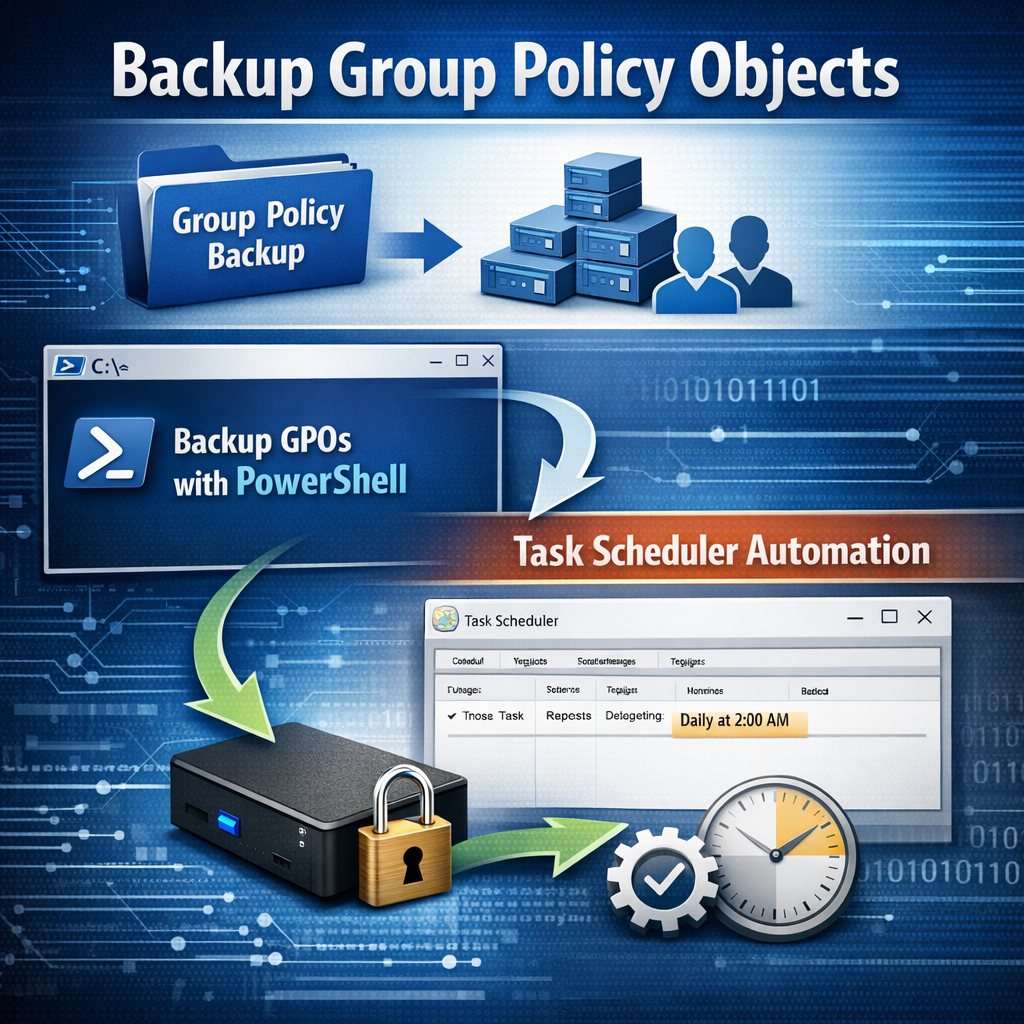
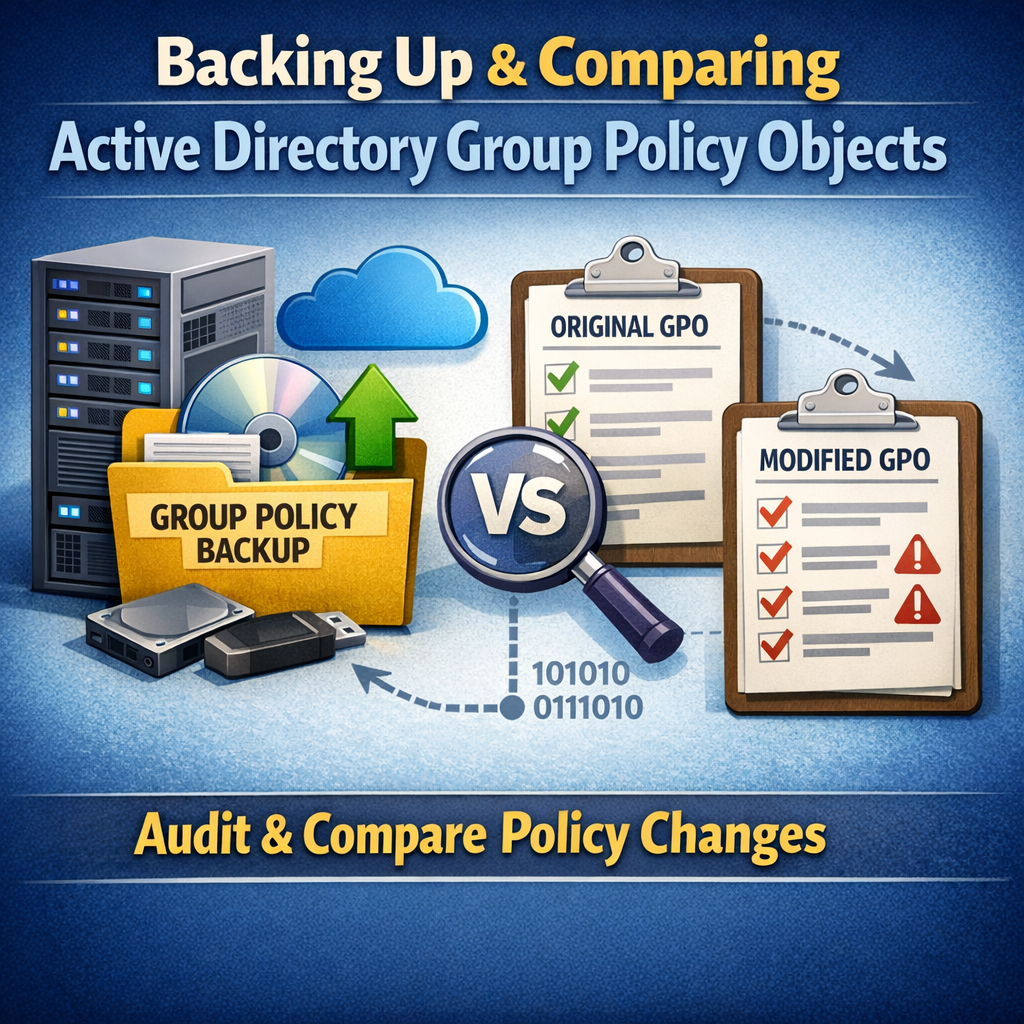
In Part 1, we automated Group Policy Object (GPO) backups using PowerShell and Task Scheduler. Backups alone are valuable—but their real power comes from visibility.
Auditors don’t ask if you back up GPOs.
They ask:
“Show me what changed during this period.”
In this post (Part 2), we’ll walk through how to compare two GPO backup points, identify added, removed, and modified GPOs, and generate a clean, professional HTML audit report—all automatically using PowerShell.
Why GPO Change Reporting Is Critical
1. Audit and Compliance Requirements
Most security audits require:
- Evidence of configuration control
- Proof of change tracking
- Clear visibility into who/what/when changed
This report lets you answer auditors confidently—with facts, not screenshots.
2. Change Tracking in Large Environments
In large Active Directory environments:
- GPO changes can be frequent
- Multiple admins may edit policies
- Changes can cause outages or security drift
A monthly comparison highlights exactly what changed, without manual inspection.
3. Rapid Incident Investigation
If something breaks:
- Authentication issues
- Security hardening failures
- User environment problems
You can quickly verify whether a GPO change is the cause.
How the Script Works (High Level)
This PowerShell script:
- Uses existing GPO backups from Part 1
- Automatically selects the latest available backup per month
- Compares:
- Added GPOs
- Removed GPOs
- Modified GPO settings
- Generates a single HTML report suitable for audits
Backup Selection Logic (Audit‑Friendly)
The script uses a smart cut‑off rule:
- Selects the latest backup on or before the 23rd of each month
- Ensures consistency even if schedules slip by a day or two
- Ideal when reports run on the 24th or later
This avoids false comparisons caused by partial or late backups.
Output: What the HTML Report Contains
The generated report includes:
- Report metadata (date, script version)
- Compared backup dates
- GPO counts (previous vs current)
- Summary section
- Lists of:
- Added GPOs
- Removed GPOs
- Changed GPOs
- Detailed diffs showing:
- ADDED settings
- REMOVED settings
- Logical grouping hints (Security, Preferences, Admin Templates, etc.)
This makes the report readable for both technical teams and auditors.
Sample GPO Monthly Change Audit Report (HTML Output)
Scheduling Recommendation
- Run daily GPO backups (Part 1)
- Run the comparison task monthly (24th or later)
- Store reports for audit retention (6–12 months minimum)
Final Thoughts
Together, Part 1 and Part 2 form a complete GPO lifecycle solution:
- ✅ Automated backups
- ✅ Historical tracking
- ✅ Audit‑ready reports
- ✅ Zero manual effort after setup
This approach scales cleanly from small domains to large enterprises, and gives IT admins and auditors exactly what they need—fast.
📌 Related Posts
- Part 1: Automating GPO Backups with PowerShell and Task Scheduler
- Part 2: Generating GPO Change Audit Reports Using PowerShell