1. The Problem
In many enterprise Active Directory environments, administrators use two accounts:
- A standard user account for daily workstation use
- A privileged admin account for RDP and administrative tasks
Because admin accounts are used infrequently and often with incorrect passwords, they get locked out regularly.
This results in:
- Increased helpdesk tickets
- Admin downtime
- Manual unlocks by other admins
- Poor operational efficiency
✅ Goal
Create a secure internal web portal where:
- An admin logs in using their standard account
- Clicks one button
- Unlocks only their own admin account
No usernames typed
No helpdesk involvement
No security shortcuts
2. Solution Overview
We will build a simple IIS‑hosted internal website that:
- Uses Windows Authentication
- Identifies the currently logged‑in standard user
- Uses an AD attribute to map standard account → admin account
- Runs a PowerShell script to unlock the mapped admin account
Security Design Principles
- ✅ Least privilege
- ✅ No anonymous access
- ✅ No user input fields
- ✅ AD is the single source of truth
- ✅ Full accountability
3. Requirements / Prerequisites
Before starting, ensure the following are available.
Infrastructure Requirements
- Windows Server (2016 / 2019 / 2022)
- Server is domain‑joined
- Active Directory environment
- Internal network access only
Permissions & Accounts
- One service account (for IIS App Pool)
- Admin accounts already exist in AD
- Ability to install Windows Features
Software Components
- IIS (Web Server role)
- ASP.NET 4.x
- PowerShell
- Active Directory PowerShell module
Downloads
- ASPX File – save this as default.aspx
<%@ Page Language="C#" %>

<!DOCTYPE html>
<html>
<head>
    <title>Admin Account Unlock</title>

    <style>
        body {
            font-family: "Segoe UI", Arial, sans-serif;
            margin: 0;
            height: 100vh;
            background: linear-gradient(135deg, #2563eb, #1e3a8a);
            display: flex;
            align-items: center;
            justify-content: center;
        }

        .card {
            background: #ffffff;
            width: 420px;
            padding: 30px;
            border-radius: 14px;
            box-shadow: 0 20px 40px rgba(0, 0, 0, 0.25);
            text-align: center;
        }

        .card h2 {
            margin-top: 0;
            margin-bottom: 20px;
            color: #111827;
        }

        .btn {
            width: 100%;
            padding: 14px;
            font-size: 16px;
            border-radius: 8px;
            border: none;
            background: #2563eb;
            color: white;
            cursor: pointer;
        }

        .btn:hover {
            background: #1d4ed8;
        }

        .result {
            margin-top: 20px;
            font-size: 14px;
            color: #065f46;
        }

        .footer {
            margin-top: 30px;
            font-size: 12px;
            color: #6b7280;
            border-top: 1px solid #e5e7eb;
            padding-top: 10px;
            text-align: left;
        }

        .disclaimer {
            margin-top: 8px;
            color: #9f1c1c;
            font-size: 11px;
        }
    </style>
</head>

<body>

<div class="card">
    <h2>Unlock Admin Account</h2>

    <form runat="server">
        <asp:Button
            ID="UnlockBtn"
            runat="server"
            CssClass="btn"
            Text="Unlock My Admin Account"
            OnClick="Unlock_Click" />

        <asp:Label
            ID="ResultLabel"
            runat="server"
            CssClass="result" />
    </form>

    <div class="footer">
        <div>
            Version <strong>1.0.1</strong> · Build <strong>28-Apr-2026</strong>
        </div>

<div class="credit">
        Solution designed by core365.cloud <a href="https://core365.cloud" target="_blank">core365.cloud</a>
    </div>

        <div class="disclaimer">
            Internal use only. Access is authenticated and actions are logged in accordance with
            organizational security policies.
        </div>
    </div>
</div>

<script runat="server">
    protected void Unlock_Click(object sender, EventArgs e)
    {
        string standardUser = User.Identity.Name.Split('\\')[1];

        var psi = new System.Diagnostics.ProcessStartInfo();
        psi.FileName = @"C:\Windows\System32\WindowsPowerShell\v1.0\powershell.exe";
        psi.Arguments = "-ExecutionPolicy Bypass -File \"C:\\AdminUnlockWeb\\unlock-admin.ps1\" " + standardUser;
        psi.UseShellExecute = false;
        psi.CreateNoWindow = true;

        System.Diagnostics.Process.Start(psi);

        ResultLabel.Text = "If your admin account was locked, it has been unlocked.";
    }
</script>

</body>
</html>- Powershell Script – save this as unlock-admin.ps1
# Version: 1.0.0
# Last Updated: 28-Apr-2026
<#
    Solution: Self-Service Admin Account Unlock
    Description: Unlocks the mapped admin account for the currently authenticated standard user.
    Designed by: core365.cloud
    Website: https://core365.cloud

    Notes:
    - Intended for internal use only
    - Executed under controlled administrative permissions
    - Usage should comply with organizational security policies
#>

param(
    [string]$StandardUser
)

Import-Module ActiveDirectory

# Get standard user and admin mapping
$user = Get-ADUser $StandardUser -Properties extensionAttribute1

if (-not $user.extensionAttribute1) {
    Write-Error "No admin account mapped"
    exit 1
}

$adminAccount = $user.extensionAttribute1

# Unlock admin account
Unlock-ADAccount -Identity $adminAccount
4. Create the AD Service Account
This account will run the website backend.
- Open Active Directory Users and Computers
- Create a new user (example):
svc-ad-unlock - Set a strong password
- Configure:
- ✅ Password never expires
- ❌ User cannot log on interactively
Note: In environments where admin accounts are members of Domain Admins / Enterprise Admins, this service account must also be Domain Admin (design decision—document this risk clearly).
5. Decide Where Admin Accounts Live
Identify the OU that contains admin accounts.
This is important because:
- Unlock permissions apply at the OU level
- Admin accounts in privileged groups are protected by AdminSDHolder
6. Map Standard Account to Admin Account
Instead of using CSV files or external databases, store the mapping inside Active Directory.
Recommended Attribute
Use:
extensionAttribute1Example Mapping
| Standard Account | Admin Account |
|---|---|
| jsmith | jsmith-adm |
Set this once per admin.
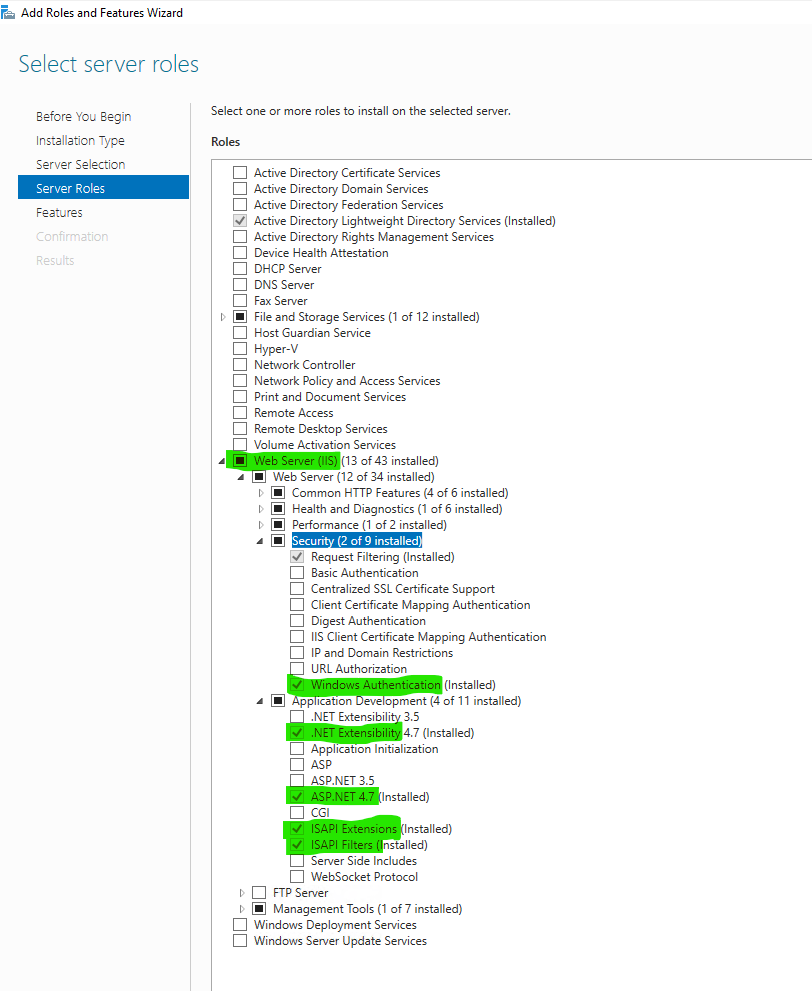
7. Install IIS and Required Features
On the web server:
- Open Server Manager
- Add Roles and Features
- Install:
- Web Server (IIS)
- ASP.NET 4.x
- .NET Extensibility
- ISAPI Extensions
- ISAPI Filters
- Windows Authentication
8. Install Active Directory PowerShell Module
This is mandatory for unlocking accounts.
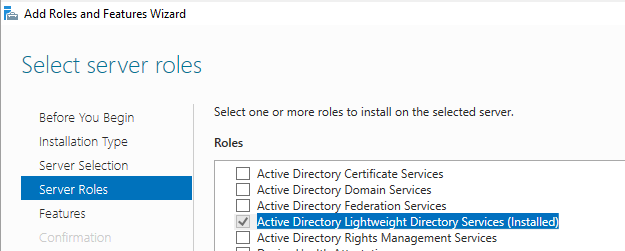
Install via GUI
Server Manager → Add Roles & Features → Roles →
Enable:
- Active Directory lightweight directory services
Verify Installation
Run on the server:
Get-Command Unlock-ADAccount
9. Create the Website Directory
Create a folder on the server, for example:
C:\AdminUnlockWeb
Set NTFS permissions:
- Administrators → Full control
- SYSTEM → Full control
- IIS_IUSRS → Read
10. Create the IIS Website
- Open IIS Manager
- Add a new website
- Point it to:
C:\AdminUnlockWeb - Bind to internal IP / DNS name
11. Configure IIS Authentication
For the site:
- ✅ Enable Windows Authentication
- ❌ Disable Anonymous Authentication
This ensures:
- The site automatically knows who the user is
- No passwords are handled by the application

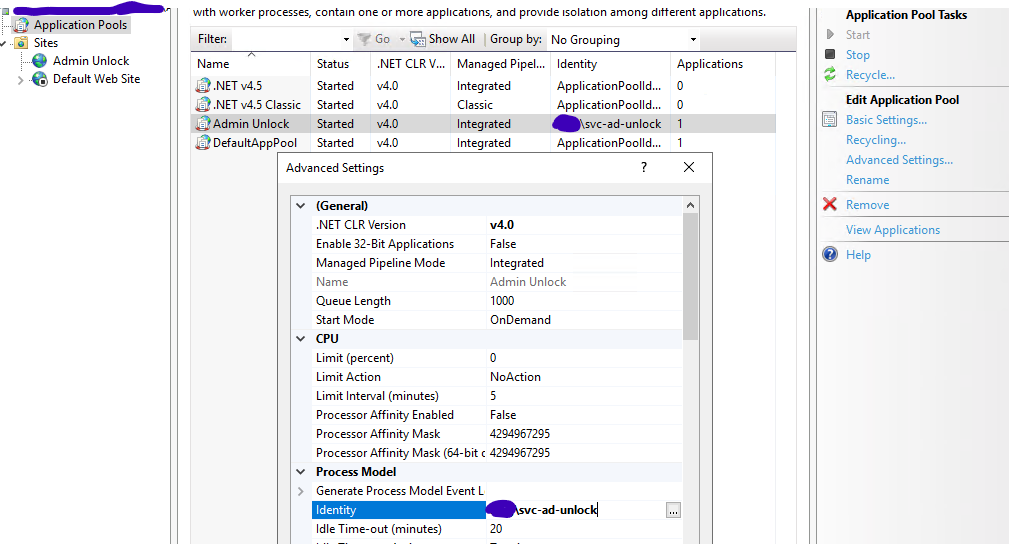
12. Configure Application Pool Identity
- Open Application Pools
- Select the site’s App Pool
- Set Identity to:
svc-ad-unlock
Recycle the App Pool after changing.
13. Add the Web Page and Script
At this point:
- Place your existing ASPX file into:
C:\AdminUnlockWeb - Place your existing PowerShell script into the same directory
✅ No code changes are required if you already have working versions.
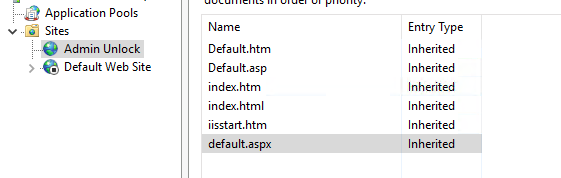
14. Configure Default Document
To avoid directory listing errors:
- Open the site in IIS
- Open Default Document
- Ensure:
default.aspxis present
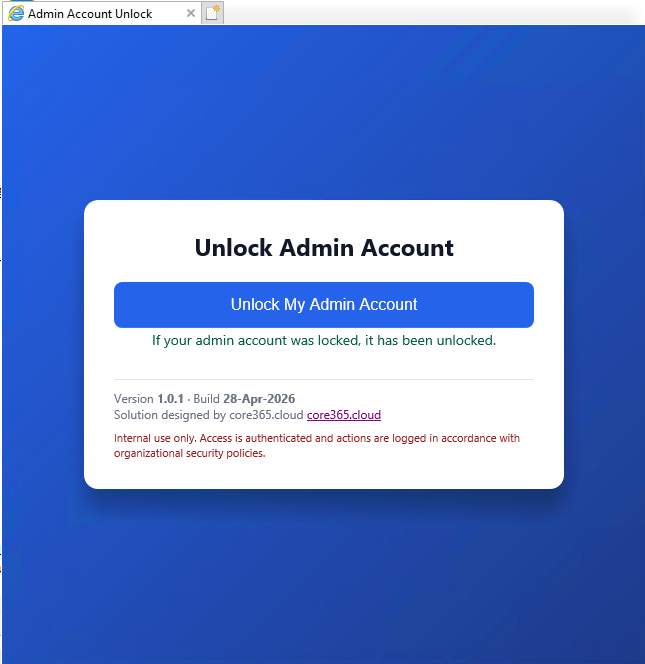
15. Test the Solution
Test Scenario
- Lock an admin account (failed login attempts)
- Log in to a workstation using the standard account
- Open browser
- Browse to the site
- Click Unlock My Admin Account
- Confirm admin account unlocks
16. Important Security Notes
- Admin accounts in Domain Admins are protected by AdminSDHolder
- Service account must have sufficient privilege
- Keep the site internal only
- Do not allow any manual username input
- Log access and unlock attempts if possible
17. Final Result
✅ Reduced helpdesk tickets
✅ Faster admin recovery
✅ No security shortcuts
✅ Fully AD‑integrated
✅ Auditable and controlled
Building a Secure Self‑Service Admin Account Unlock Tool for Active Directory – Part 2 will be discussing on how to harden the web app.